

- 1 commenton Firmware update for BERNINA 5 and 7 series
- by Mark Angilowski
Firmware update for BERNINA 5 and 7 series
- 1 commenton Firmware update for BERNINA 5 and 7 series
- by Mark Angilowski
A firmware update at BERNINA is more than just bug fixing. Depending on the version, Bernina can use it to correct software bugs, refine functions, and add content/features (e.g., new stitches, additional embroidery designs, or support for accessories like embroidery hoops). An update is particularly worthwhile if you experience error messages, irregularities in the sewing/embroidery process, or compatibility issues (accessories, formats, designs) – or if Bernina unlocks new features.
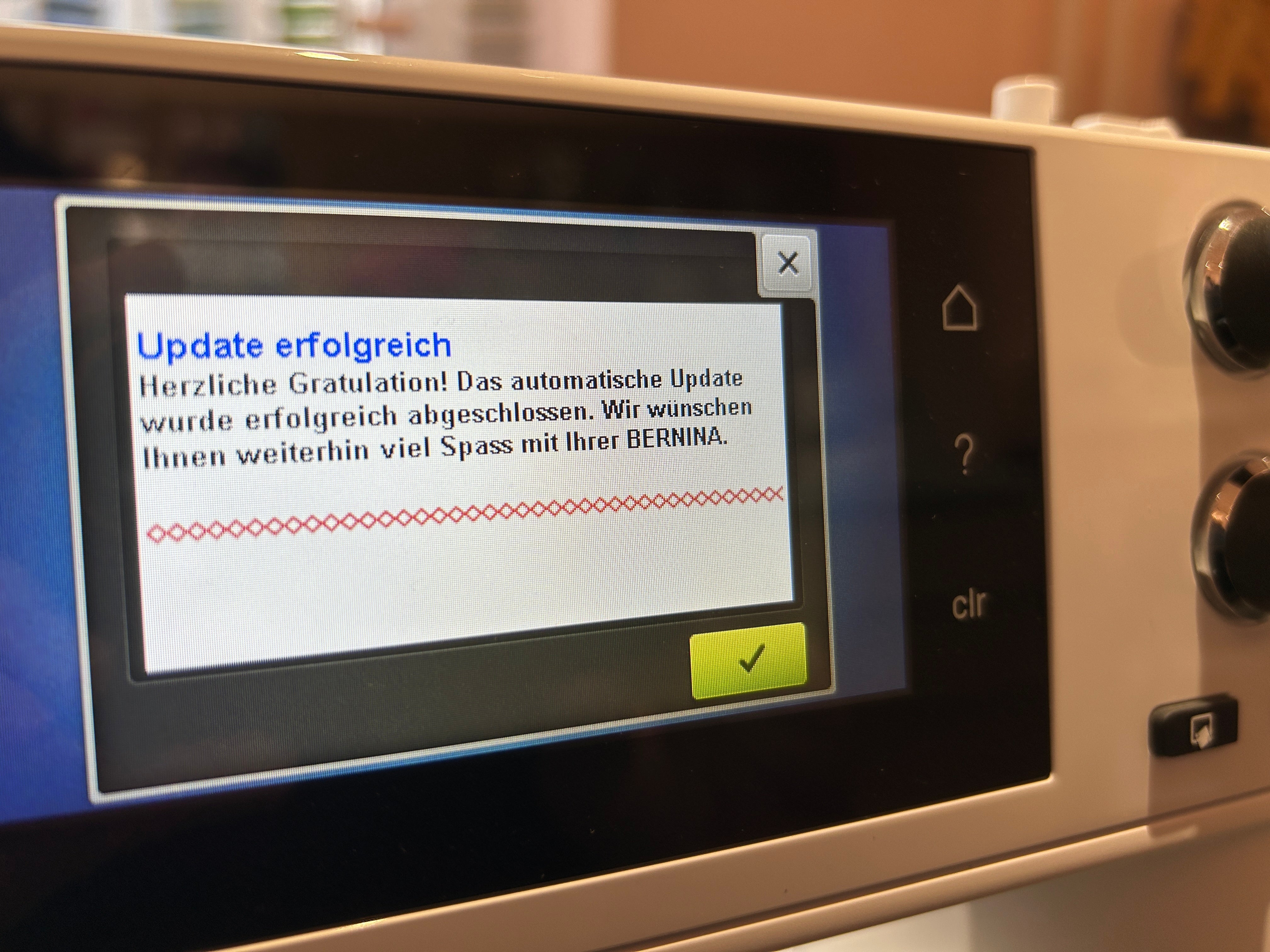
Important note beforehand: A firmware update is not a risky adventure, but it is a technical process. If you follow a few basics (use the correct USB stick, extract the files correctly, don't turn off the machine), it works very reliably in practice.
The firmware is the operating system of your machine. It controls the display, menus, motor control, sensors, embroidery module communication, pattern management, and many other functions.
A Bernina update typically allows:
– Correct errors in the software (e.g. crashes, incorrect messages, faulty processes)
– Optimize functions (e.g., stability, response time, improvements in submenus)
– Add new stitches, embroidery patterns or content (depending on the model/update)
– Add new or modified accessory support (e.g., frame/module compatibility)
– Computer (Windows or Mac) with internet access and USB port
– an empty USB stick
For the machine to reliably recognize the USB drive, it must be formatted as FAT32. Formatting will erase all data. Bernina Update
Practical tip from everyday life:
If you have multiple USB drives, use a small, simple one (e.g., 4–16 GB) just for updates. The more "specialized" a drive is (U3/security software/encrypted), the more likely you are to encounter detection problems.

You download the firmware directly from Bernina's support section . There, you select your machine model and download the appropriate firmware file. Bernina Update
Important:
– Always take your exact model (e.g. B 570 QE, B 590, B 700, B 770 QE etc.).
– The file usually comes as a ZIP file.
The downloaded ZIP file must be extracted – in such a way that all extracted files are located directly in the main directory (top level) of the USB stick, not in a subfolder.
Windows (Quick Overview)
– Right-click on the ZIP file and select “Extract all…”
– Destination folder: Select USB stick
– Make sure the files end up in the top level
Mac (Quick Summary)
– Unzip by double-clicking
– Copy the contents from the extracted folder to the USB stick
– Make sure the files end up in the top level
– Eject USB stick cleanly

Before updating, any connected accessories such as the stick module or BSR foot should be removed.

The machine is now starting the update. It will restart automatically after a short time.
During the update:
– Do not switch off the machine
– Do not unplug the USB stick
The update may take several minutes.

For models in the 7 series (and also the 8 series), it may be necessary to enter the 8-digit serial number after the update – unless it was already stored at the factory or in a previous update.
You will find the serial number on the back of the machine and enter it on the display. Then confirm the entry and repeat it.

"Do I even need to do a firmware update?"
If everything is running perfectly, an update isn't strictly necessary. However, it's advisable if:
– Bernina explicitly lists troubleshooting steps for your model that address your problem
– you want to use new features/accessory support
– you experience sporadic errors (freezing, unexplained messages, instability)
"Will I lose my embroidery designs or settings through the update?"
Generally, your settings will be retained, but this can vary depending on the update/model. If certain settings are extremely important to you, write them down beforehand (e.g., preferred thread tension settings, personal default options, screen/sound settings). Patterns on your USB drive or separate storage media are independent anyway.
"Why does the USB stick have to be FAT32?"
Because the machine can reliably read this file system. Other formats (exFAT, NTFS) are often not recognized. Bernina explicitly specifies FAT32 as a requirement.
"My machine doesn't recognize the USB stick – what can I do?"
"I copied the ZIP file to the USB stick – is that enough?"
No. You need to unzip the ZIP file and place the unzipped files onto the USB drive.
"Why should I remove the embroidery module or BSR foot beforehand?"
This prevents any additional communication/detection of connected accessories from interfering during the update. Bernina specifies this as a prerequisite for the update.
"How long does an update take?"
Depending on the version, this may take a few minutes. The important thing is: do not interrupt, do not turn off, do not remove the USB stick.
"What do I do if the update fails or the machine freezes?"
"After the update, my 7 Series is asking for a serial number – is that normal?"
Yes. For 7/8 series models, the 8-digit serial number can be requested if it is not already stored.
"Can an update unlock new stitches, embroidery patterns, or frames?"
Yes, that happens. Updates can add content/features in addition to bug fixes. Whether and what exactly is included depends on your machine and the specific firmware version.
If you prepare the update carefully (FAT32 stick, correctly unpack files, disconnect accessories), a firmware update for the BERNINA 5 and 7 series is usually quick and often brings noticeably more stability – and sometimes even new functions or content.
And if you encounter problems: In most cases, the issue isn't with the machine, but with the USB stick, the folder structure, or an unzipped ZIP file. Carefully work through the checklist – and if you're still stuck, contact your dealer or us if you purchased the machine from us. We'll then take a look together and get your BERNINA back up to date.
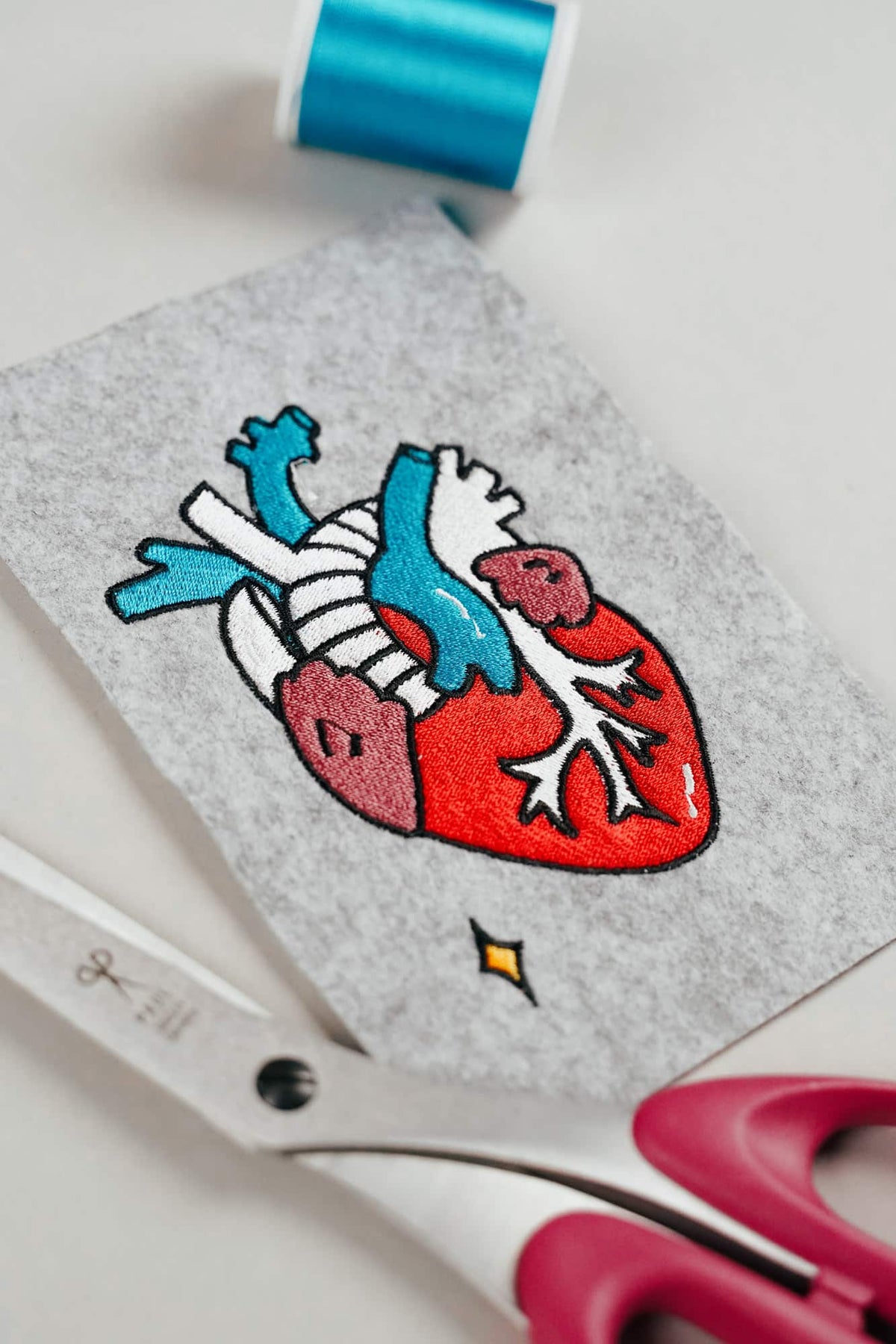
AI embroidery designs look great – but as embroidery files, they're often completely useless
AI images often look like perfect embroidery, but are frequently unsuitable as a template for a real embroidery file. We'll show you which mistakes to avoid with AI-generated motifs, how to formulate better prompts, and how to recognise well-digitised embroidery files.
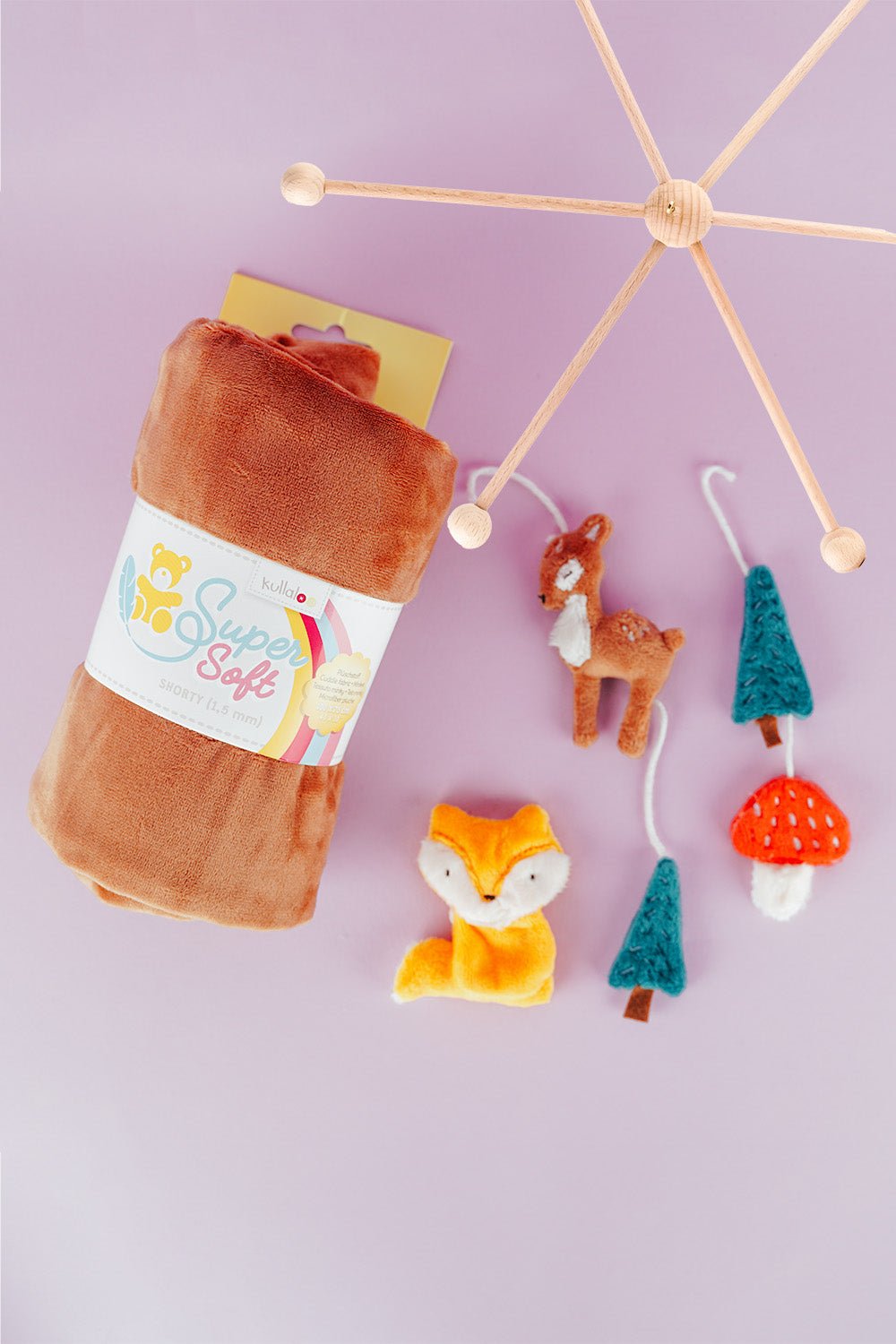
Embroider a woodland mobile: ITH ornaments step by step
Embroider fox, deer, fir tree and mushroom in a 10 × 10 cm hoop, then turn them into a woodland mobile or garland.
Read moreabout Embroider a woodland mobile: ITH ornaments step by step
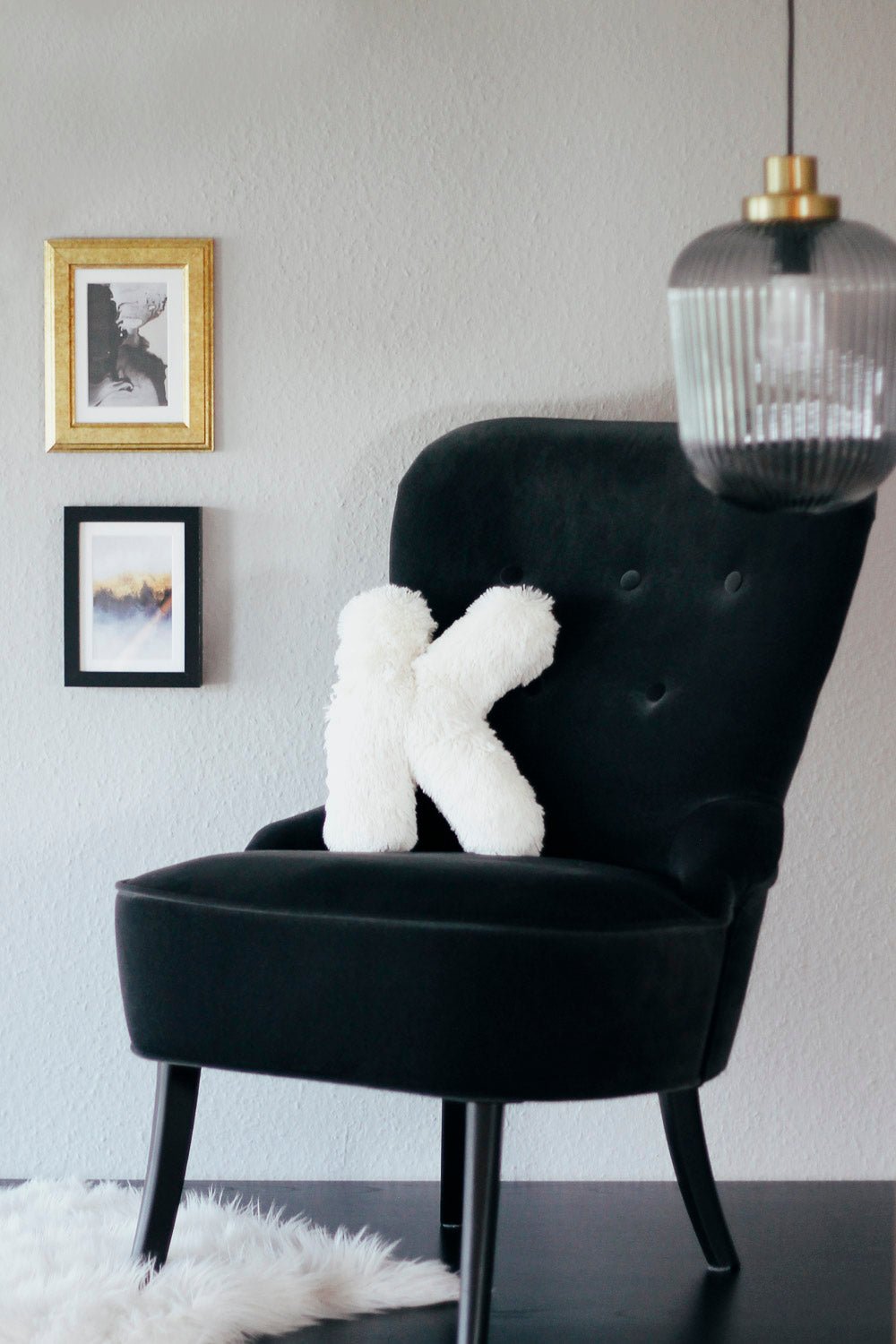
Sew an alphabet cushion: personal pillows from A to Z
Sew an alphabet cushion with neat curves, even filling and a hidden ladder stitch, using a digital pattern that includes every letter from A to Z.
Read moreabout Sew an alphabet cushion: personal pillows from A to Z
Split:
How to embroider jeans with an embroidery machine!
Raise presser foot with needle down position – bernette b77 and b79
1 comment
Sehr gut verständlich erklärt. Alles hat funktioniert. Danke.